How to Post Across Every Platform Without Ever Leaving YouTube

Promoting a video shouldn't mean rewriting it six times

Every upload comes with a second task: telling people it exists, on every platform they might see it. Most creators handle this manually, which is why it's often the first thing that slips.

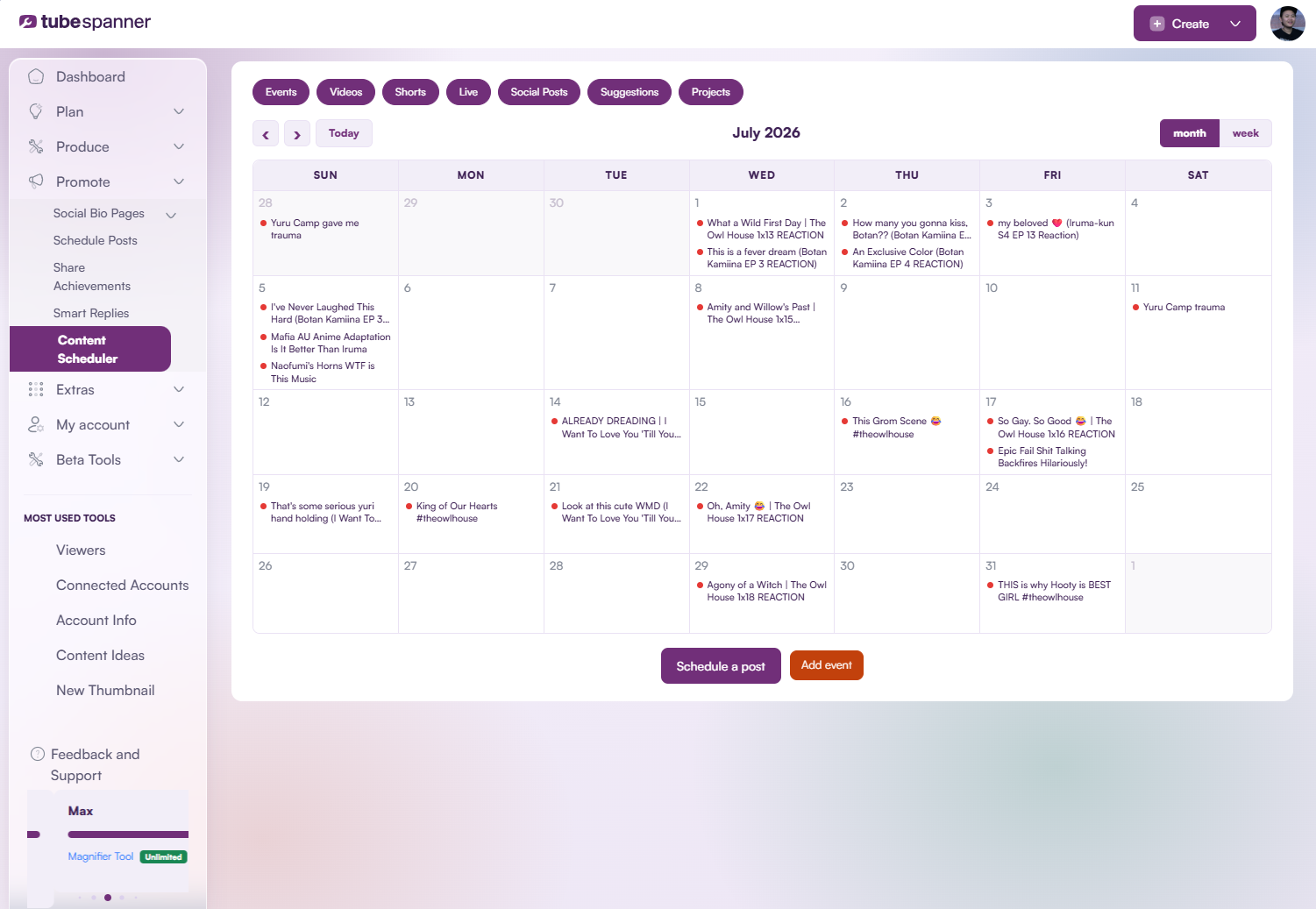
TubeSpanner Social Media Planner
Ike

Heading
Why social posting usually falls apart

Body

When you upload your videos on YouTube, it doesn't automatically post onto your other social media, so you'd have to go onto Instagram to create a post, then to Threads, then to X or BlueSky. If you're not scheduling these ahead of time, it can be a chore once your video is published.

You'll end up with gaps where nothing gets posted, rushed captions written in the moment, or the same message repeated so often it stops meaning anything.

And the last thing anyone wants to see on their social feed is a post that just links to a YouTube video. They have no reason on why they should click to watch, and they might not even know who you are. So your social media posts fall on deaf ears, and you might start to wonder why would you even go through all this effort in the first place.
Heading
One planner, every platform

Body

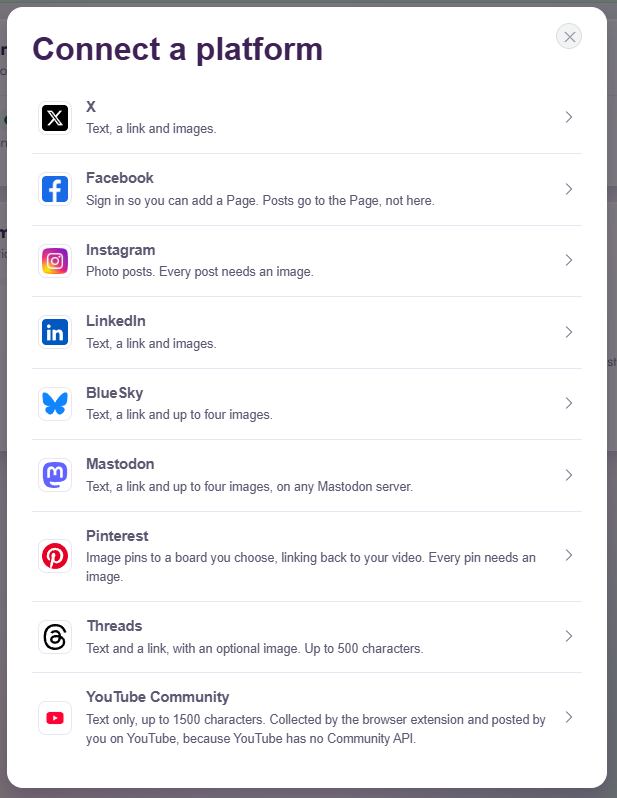
TubeSpanner's Social Media Planner connects to your accounts and lets you manage them from a single place. The Planner currently supports X, Facebook, Instagram, LinkedIn, BlueSky, Mastodon, Pinterest, Threads, and your YouTube Community, with more platforms being added regularly.

It's available in both the Dashboard and the Browser Extension, so you can schedule a post from wherever you're already working, including right from YouTube itself.

Heading
Write one, adapt everywhere

Body

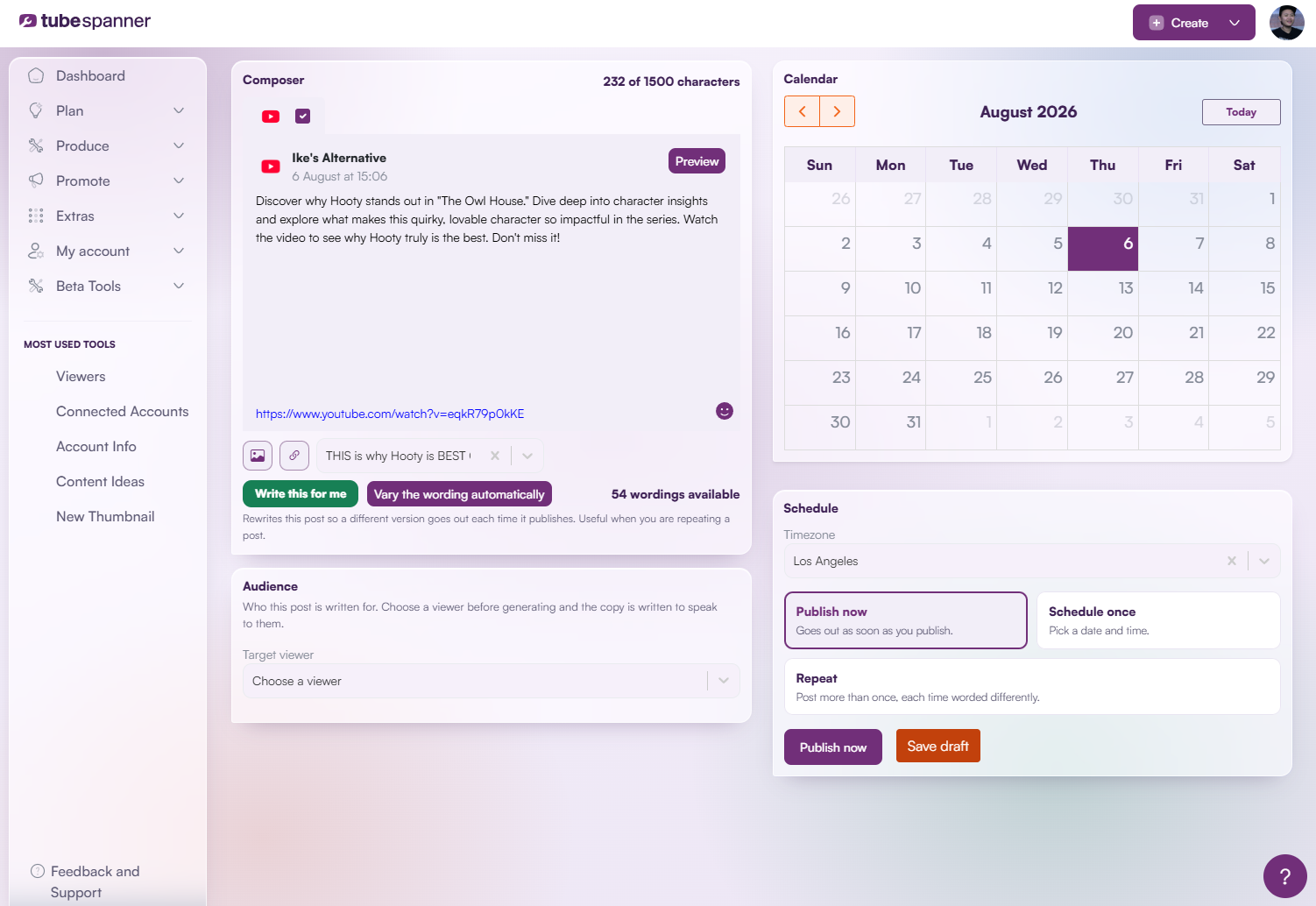
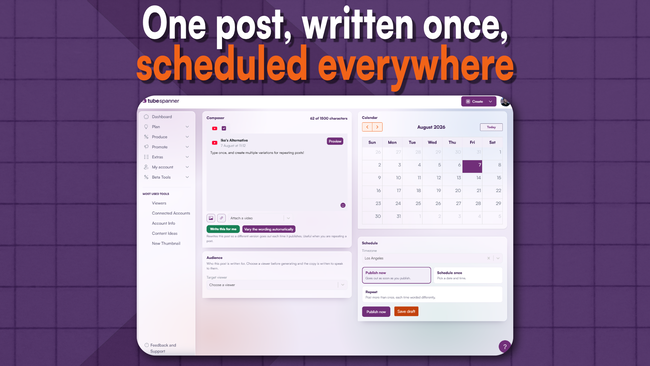
The composer is built around one idea adapted for multiple platforms. In the Dashboard or Browser Extension, select the platform (that you're connected to) you want post on, and start typing. 

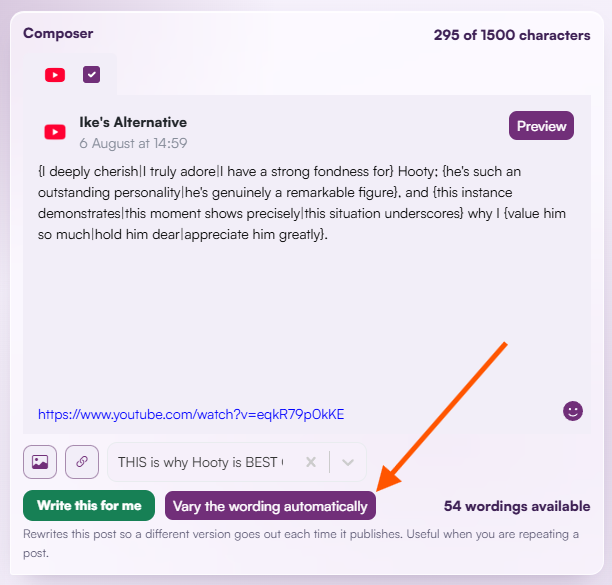
Planning on making a repeat post? Click on "Covert to Spintax" on the Browser Extension or "Vary the wording automatically" on the Dashboard, and it'll turn your words into two or three variations.

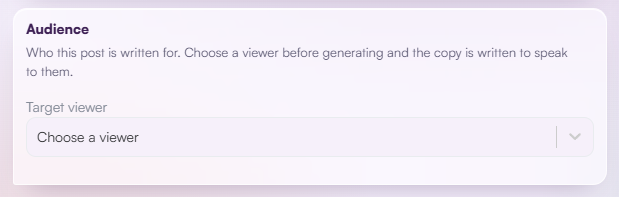
You can even set a Target viewer, so the copy will be written with that audience in mind. 

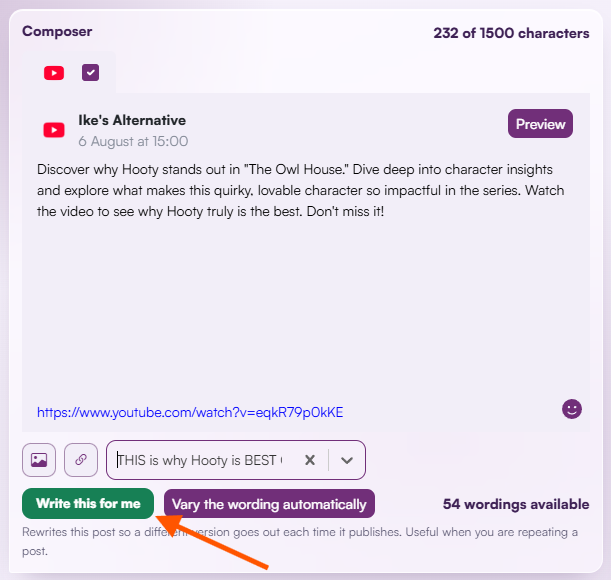
Not sure how to even begin? Select your video and let the Planner write it out for you. Then you can change it however you like.

Heading
Scheduling that fits how you actually work

Body

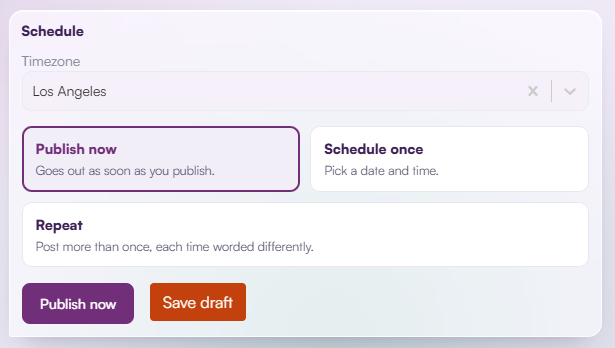
Once a post is written, there are three ways to send it out: Publish now, which goes out as soon as you confirm it; Schedule once, where you pick a specific date and time; and Repeat, which posts the same idea more than once, each time worded differently (if you converted it to spintax).

Heading
Cadence checks that guides

Body

It's easy to lose track of how often you're posting once you're spread across multiple platforms. Cadence checking gives you visibility into that, flagging where you might be overposting, or where you've gone quiet without meaning to.

Heading
Built for video promotion, useful beyond it

Body

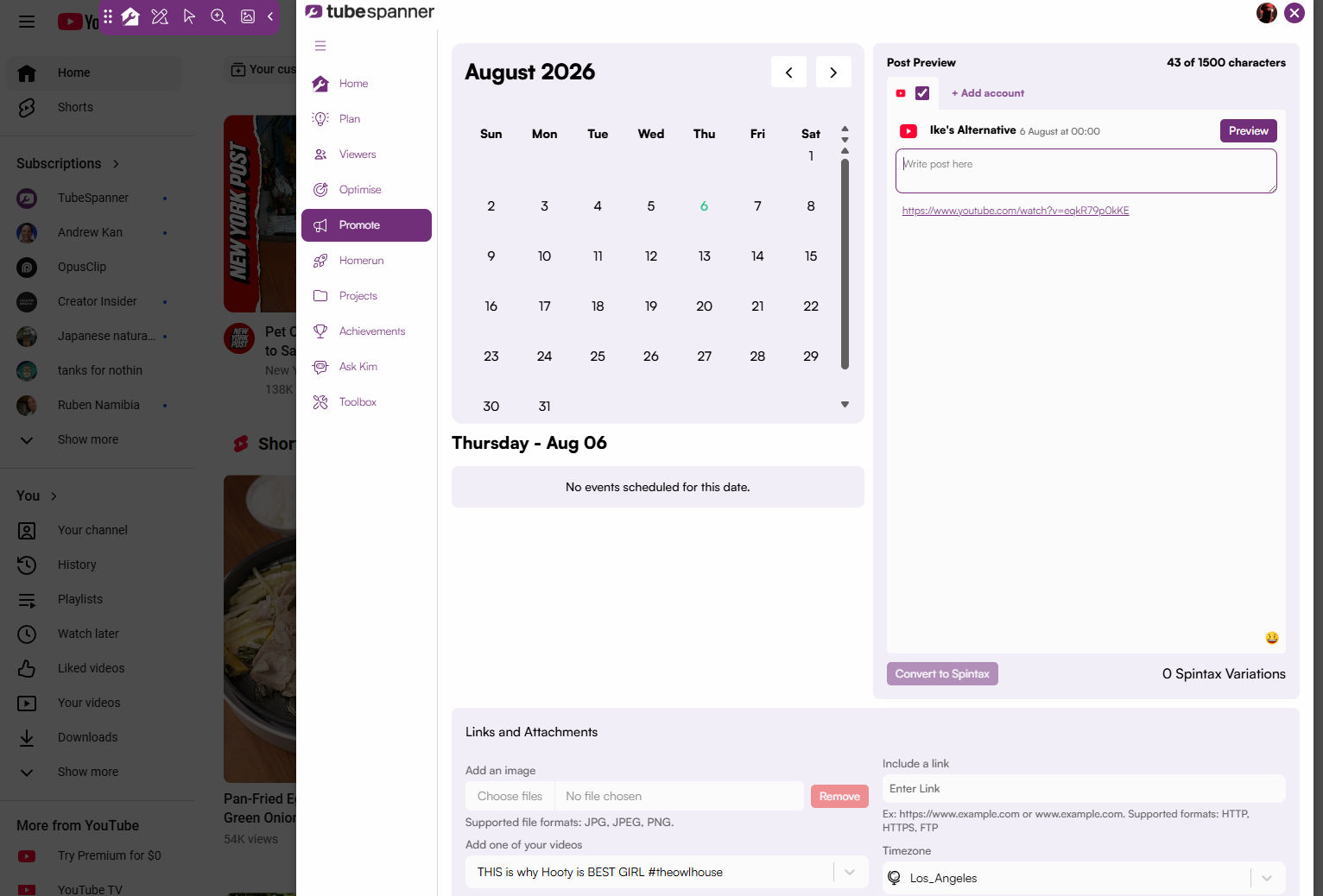
The composer is built to plan your social media posts with ease. Under Links and Attachments, you can add one of your videos directly from a dropdown, no hunting for the link or leaving YouTube to copy it. You can also attach an image or a link instead, if the post isn't tied to a specific upload.

The Post Preview panel shows exactly how the post will look per connected account before it goes out, so you're not guessing how it'll render on each platform.

It's not limited to video promotion, either. General updates, behind-the-scenes content, anything else you'd post across platforms goes through the same composer.

Title
Ready to plan social posts with confidence?
Body

You don't need six open tabs and a mental checklist to show up consistently across platforms. The Social Media Planner keeps writing, scheduling, and reusing content in one place, so posting fits into your workflow instead of competing with it.