Your YouTube Description Is Doing More Than You Think

Your YouTube Description Is Doing More Than You Think

It's easy to treat the description as the box you fill in last. YouTube's own guidance says it deserves more attention than that.

It helps viewers find your video, tells YouTube what it's about, and holds the chapters, playlists, and links that give viewers somewhere to go next.

TubeSpanner Auto Description
Ike

Heading
It tells YouTube and viewers what the video is about

Body

YouTube's help page calls YouTube one of the largest search engines in the world, and says descriptions written with keywords help viewers find your videos through search. Search terms are matched against the video itself and the text in the description. 

This means the words you use is part of how the video gets found. Don't assume they're just there for decoration.
The first few lines do the heavy lifting.

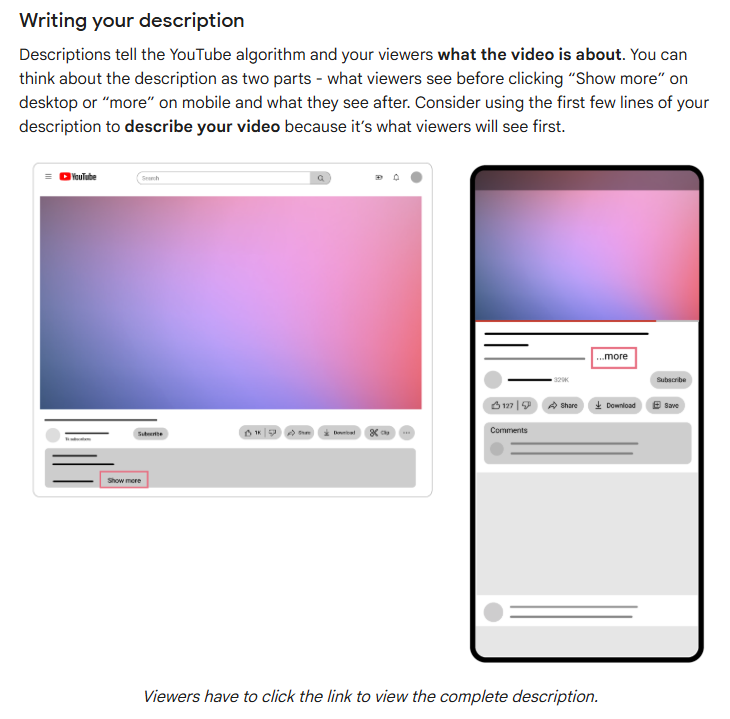
YouTube suggests thinking of your description in two parts: what viewers see before they click "Show more" (or "more" on mobile), and what they see after. The first part is what people read first, so use it to describe the video.

Pick one or two main words for the video and feature them prominently in both the title and the description. If you're not sure which words to pick, YouTube points to the Research tab in YouTube Analytics and Google Ads Keyword Planner for popular keywords and their synonyms.

Then check the data. The report in YouTube Analytics that shows how viewers find your video lists the search terms people actually use. If some of those words are missing from your description, add them.


Tip

Image
Tip

Title
Check how it looks before you publish

Body

YouTube recommends checking how your description appears in search, on the watch page, and on mobile. Make sure the most important information shows up where you want it.

Heading
Every video needs its own description, plus a shared bottom

Body

YouTube gives two pieces of advice that seem to pull in opposite directions. Each video should have a unique description, because that makes it easier to find in search and helps it stand out from similar videos. YouTube also recommends filling in a default description that adds channel info to every video automatically.

Write a unique opening for each video, and let the second part carry the things that stay the same across your channel. That second part has room to work with, since descriptions can run up to 5,000 characters.

Heading
What belongs below "Show more"

Bullets Multi

YouTube's guidance points to a few things worth adding:

  • Chapters, so viewers can skip to the important parts of longer videos
  • Links to playlists of related videos
  • Credits and mentions for collaborators
  • Your channel profile links

You can also bold, italicise, or strikethrough text. You can do this on either mobile or desktop.

  • Wrap a * around a sentence to bold

  • Wrap a _ around a sentence or word to italicise

  • Warp a - around a sentence or work to strikethrough

  • For bullet points, use *, +, or - followed by a space.

Heading
The hard part is doing it every time

Body

That's a lot of small decisions per upload. The opening changes with every video, the bottom half mostly doesn't, and the links and chapters need to land in the right place each time.

So a lot of creators rush this step or copy an old description and tweak it. That's how descriptions end up inconsistent, and copying last week's is a quick way to end up with something that isn't unique and doesn't help you with search.

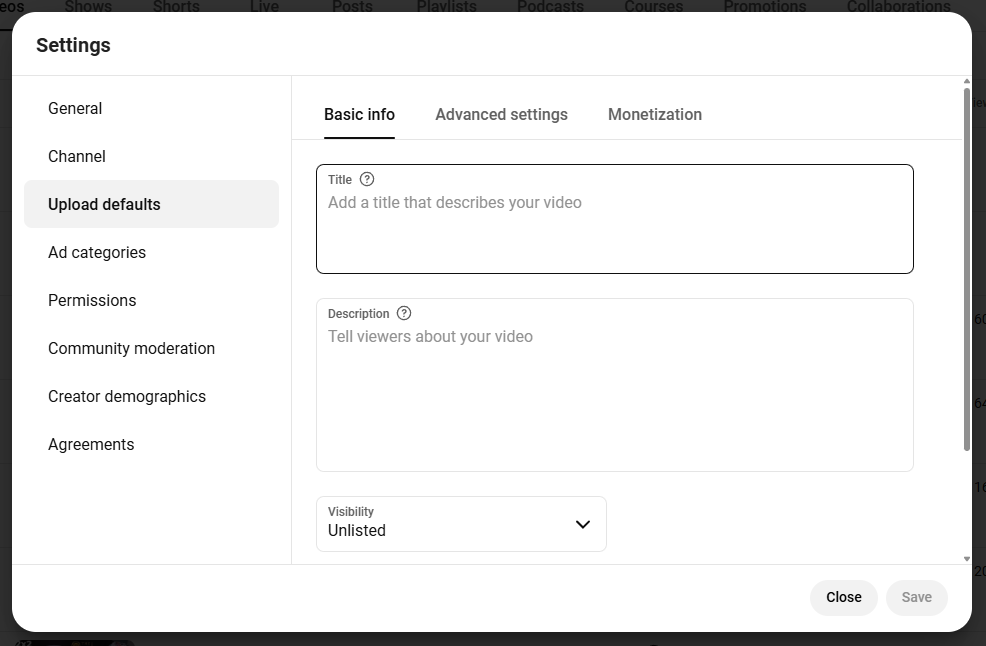
Use YouTube's upload defaults to get the second part ready so that you don't have to fill it in every time. You can find it by going into YouTube Studio desktop and clicking on settings (bottom left).

Heading
Let Auto Description write the first draft

Body

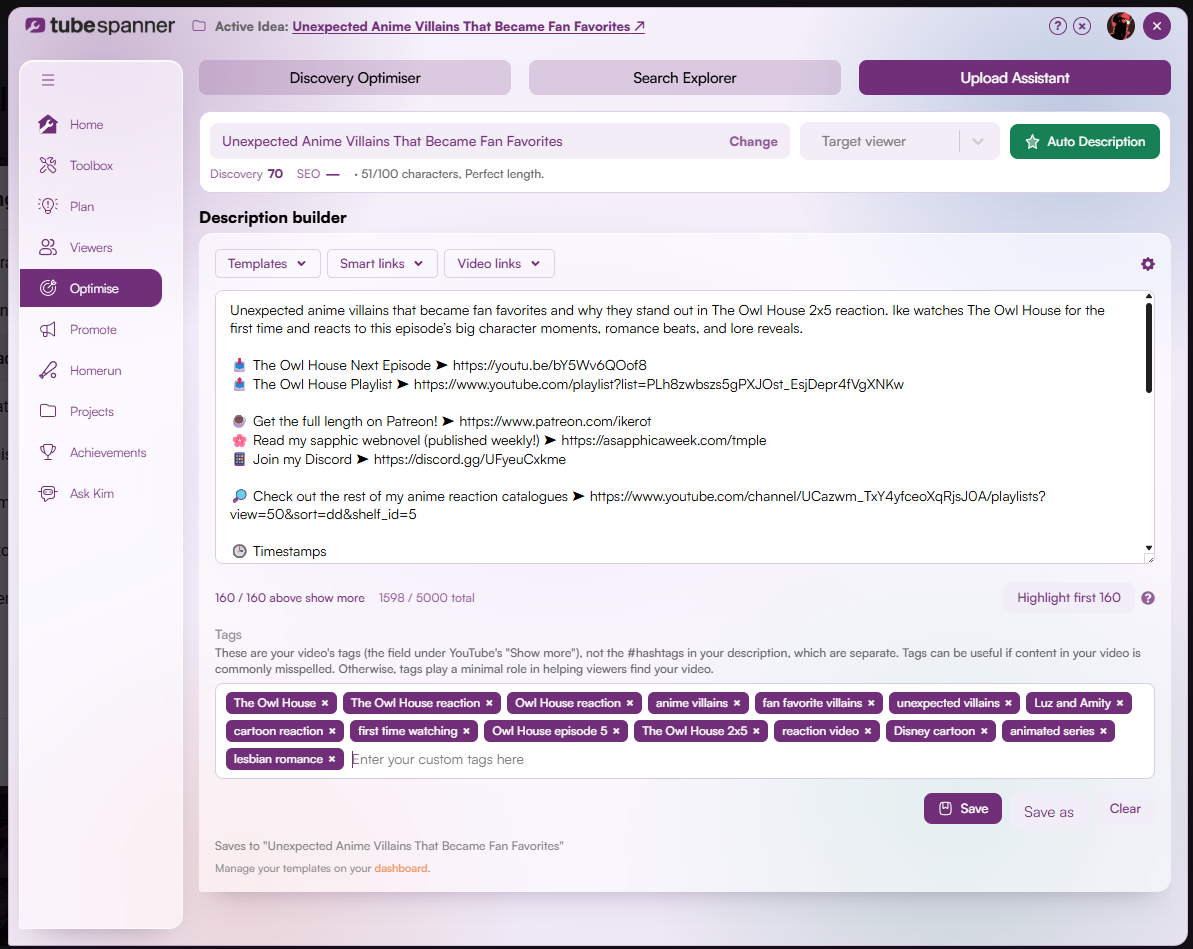
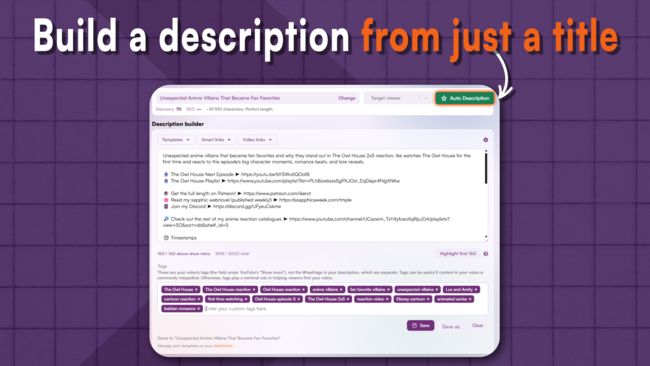
In TubeSpanner's Upload Assistant, the Description builder has an Auto Description button. Click it and TubeSpanner builds a description based on your video's title, and gives you a set of tags to go with it.

This gives you a starting point that's about this video. It builds from your title, so the one or two main words you picked for the title are what the description starts from. If you've connected your channel to TubeSpanner, the extension will be able to read your channel data to understand who is your current audience, so it can give you better descriptions instead of generic ones.

Treat it as a first draft. Sharpen the opening, add your chapters or timestamps, and check that it says what the video actually delivers.

Under the text box, the builder shows how much of your description sits above "Show more", alongside how much of the 5,000-character limit you've used. The Highlight first 160 button marks that opening stretch, so you can check that your main words and the point of the video land where viewers read first.

Auto Description fills the tag field for you too. You can edit, add, or remove tags before you save.

Upload Assistant appears during the YouTube upload process and on the video edit page in YouTube Studio. Once you're happy with the description, you can apply it there without copying and pasting between tabs.

Note

Image
Note

Title
You stay in control

Body

Upload Assistant doesn't publish anything automatically. You decide what to apply and when, so you can still adjust the opening lines for each video.

Title
Start your next description from the title
Body

Open the Description builder in Upload Assistant and build a description and tags in one click.