
Desktop app for Mac, with a Windows preview
TubeSpanner Live Beta
Run your live show from your computer. Live puts your cameras, screens and mics on air at full quality, records every one of them to its own file, brings guests on with a link, and takes the show live on YouTube.
Version 0.1.12, 18 October 2026. Sign in with the TubeSpanner account you already have.
Not sure which Mac you have? Apple menu, About This Mac. A chip named Apple M-something is Apple silicon, an Intel processor is Intel.

Your desk does the show
Live mixes the show on your own computer, not on a server, so your cameras and screens go on air at the quality they were filmed at, not as a video call. Every source is recorded to its own file on one clock, and the files are safe if the app closes unexpectedly. The cloud does only what your desk cannot: it brings your guests on, and they record themselves in full quality while you talk.
Studio quality from your desk, cloud reach.
How a show runs
-
1
Set the stage
Add your cameras, screens and mics, then pick a scene: one person, everyone, a spotlight, or your screen with people beside it.
-
2
Bring your guests on
Send a link. Your guests wait in a waiting room until you let them on, and each one records in full quality as the show goes.
-
3
Go live and record
Paste your YouTube stream key and go live. Press Record and every camera, screen and mic is kept as well, each in its own file.
What Live does
Scenes for every part of the show
One person, Everyone, Spotlight, and Screen and people, with Starting soon, Be right back and an end slate around them. Transitions between scenes, Cut to who’s talking, and Your scenes to bring back a saved scene with one key.
Every source, its own file
Record keeps the show as it went out, plus every camera, screen and mic as its own file on one clock, ready to edit. The files survive the app closing unexpectedly, and a transcript is made on your computer afterwards.
Guests from a link
Guests join from their browser with just their name. They wait in a waiting room until you let them on, record themselves in full quality, and upload as they go, so nobody sends you files afterwards.
Live on YouTube
Go live takes the stream key from YouTube Studio and puts the show on your channel, while Live records it at full quality on your computer.
Run the show, not the software
Rundown keeps your segments, timers and what comes next. Script holds your teleprompter. Mark saves moments for chapters and Shorts. Levels shows how loud each mic is and can match them.
Your look on the show
Looks in TubeSpanner, Classic or your own style, name strips, your logo, backdrops, an intro video and an end slate. Pictures on the show add frames, stickers and lower-third art of your own.
Graphics that look like a show
Live draws its own on-stream graphics in the look you pick. These three are in a neon look.
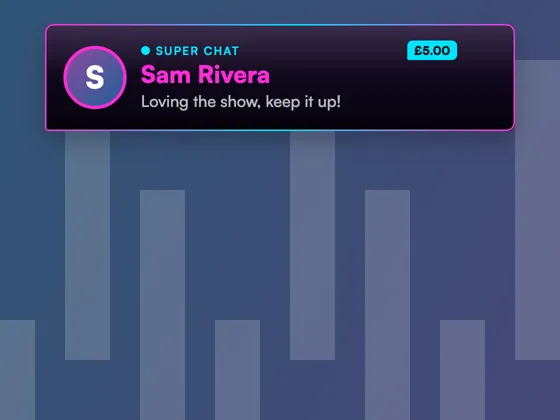
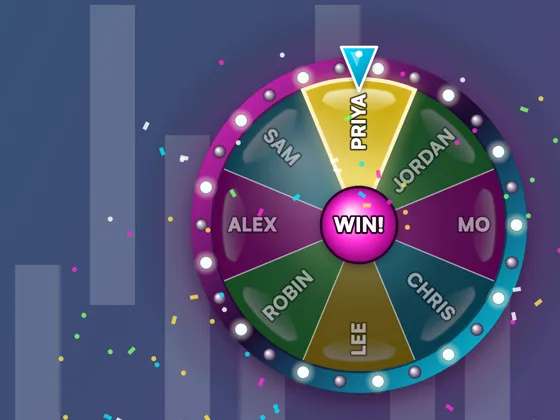

Tools for the chat include supporter alerts, a goal, poll results, a question queue, trivia, a viewer queue, a hype meter and more. Each one has a Demo button, so you can see it before the show.
Downloads
-
Mac, Apple silicon TubeSpanner-Live-mac-arm64-0.1.12.dmg, 133 MBDownload
d45e3e5debb84268… -
Mac, Intel TubeSpanner-Live-mac-x64-0.1.12.dmg, 141 MBDownload
f46207597f6420e9… -
Windows (preview) TubeSpanner-Live-win-x64-0.1.12.exe, 117 MBDownload
28cd1f1904347be7…Signed by AGILE451 LTD. The certificate is new, so for now Windows may still show “Windows protected your PC”. Choose More info, then Run anyway.
What is in 0.1.12
Ending a show is one step. Stop from the floating bar that stays over every app while you record, or press Control-Option-Shift-Command-R from any app. Live comes to the front with your show saved, and a Start a show recording stops sharing your screen too.
After Stop, one card: watch the recording, show the files, or get it ready to edit in DaVinci Resolve, Premiere Pro, Final Cut Pro or as a podcast. Live remembers which you use. Record another take keeps everything on; Done ends the show, turns your cameras, mic and screen sharing off, and takes you to Show Planner.
With TubeSpanner Studio 2.2.56 or later installed, the card after Stop and Past shows offer Open in Studio: every camera, the screen and the mics, lined up, ready to edit.
Choose where recordings go, in Settings. They go to Movies, TubeSpanner Live on a Mac (Videos on Windows) until you choose another folder. Shows already recorded stay where they are and stay in Past shows. If the folder you chose can't be reached (a drive unplugged), the show still records, in the usual folder, and Live says so.
Your scenes, sequences, sounds and show style can be saved to your TubeSpanner account, so they're the same on any computer you sign in on. The first time you sign in, Live asks. Live always works from its own copy, so a show never waits for the internet. Pictures, sounds and video files stay on each computer for now.
Guests' own full-quality recordings are now lined up with yours to a fraction of a second, measured against what you heard, so an editor can use them straight away.
If a camera or microphone stops, Live says why (unplugged, or the computer went to sleep) and how to bring it back.
Each recording now says what kind of show it was (Tutorial, Interview and so on), so TubeSpanner Studio can edit it the right way.
The editor project lines up every camera, the screen and the mics, with timecode, and each mic as a Broadcast WAV for a sound editor.
Start a show: "Start without the countdown".
Recording messages say what kind they are: green ✓ when it worked (the transcript is ready), yellow ! for a caution (little disk space left), red ✕ for an error.
Every recording folder now has a "What's in this folder.txt" that says what each file is, in plain words, updated once the transcript is made.
Reply to your YouTube live chat from the Chat tab, as your channel. Click someone's name to start a reply to them. If a reply can't be sent (the chat has ended, YouTube asks you to slow down), the box says why and keeps what you typed; the show carries on. For now replying needs YouTube connected to Live itself on the Go live tab, which is open to testers.
Good to know
- What you need
- A Mac, Apple silicon or Intel, or a 64-bit Windows 10 or 11 PC (not Windows on ARM). To go live, a YouTube channel with live streaming switched on.
- Installing
- On a Mac, open the disk image and drag TubeSpanner Live to Applications. It is signed by Agile 451 Limited and checked by Apple, so there is no warning to click through. macOS asks once to use your camera and microphone, and once to record your screen the first time you share it. On Windows, run the installer. It installs for you alone, so no administrator is needed. Windows does not ask each app for the camera and microphone: they have to be allowed for desktop apps in Settings, Privacy and security, and Live opens that page if they are off.
- Your account
- Sign in with the TubeSpanner account you already have: Live opens your browser, the same way TubeSpanner Editor does. Signing in brings your brand and your assets to the show, and lets you invite guests.
- Your recordings
- They are saved on your computer, in a TubeSpanner Live folder inside Movies on a Mac, or inside Videos on Windows. Guests’ recordings upload while the show is on, and arrive in the same folder.
- Windows, in preview
- Live for Windows is new. Going live, transcripts and hosting guests have had less testing on Windows than on a Mac. Guests can join from any computer.
- Updates
- Live checks for a new version when it starts, and offers to restart into it between shows, never during one.
- Live and TubeSpanner Editor
- They are separate apps, and you can have both. TubeSpanner Editor is for editing the videos you record. Live is for the show.
Put your next show on from your desk
Your cameras at full quality, your guests a link away, and every source recorded on its own.
Download for Mac, Apple silicon